
How to Recover Deleted Messages in WhatsApp [4 Methods]

Download FM WhatsApp APK Latest Version, 100% guaranteed Working | Last Update: May 2026
In today’s digital world, it can be very upsetting when key WhatsApp messages get lost. There are ways to get back these deleted messages, but how well they work depends on your situation. This post looks at four ways to help recover deleted WhatsApp messages, listing their good points and bad points to make the process easy and clear for users.
Why do we recover deleted messages?
You need to know why and how the recovery process works before you start it. WhatsApp lets you remove sent messages if the receiver has not read them yet. If the receiver has already read it, you cannot delete it for everyone. It can only be deleted for yourself.
Method 1: Restoring from Backup on iPhone
If you have an iPhone, you can easily get back deleted WhatsApp messages from a backup. Here is a simple guide on how to do this:
- Open Settings: Go to WhatsApp settings.
- Chat Backups: Tap on ‘Chats’ then ‘Chat Backup.’
- Backup Now: Make sure both iCloud Drive and WhatsApp are turned on in your iCloud settings, then make a backup by tapping ‘Backup Now’ or use auto backups.
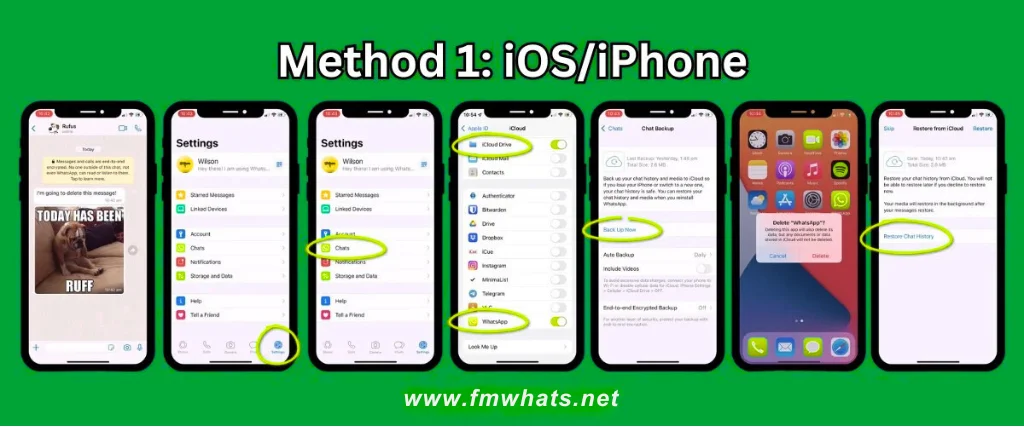
If messages are deleted, follow these steps to get them back:
- Delete WhatsApp: Remove WhatsApp from your device.
- Reinstall WhatsApp: Get WhatsApp from the App Store and follow the setup steps.
- Restore Backup: When asked, restore your latest backup. This way will bring back messages and photos deleted before the last backup.
Note: You can only restore the latest backup. But if an auto-backup happens after the messages are deleted, this way will not work.
Method 2: Using Notification History on Android
If you use an Android phone, turning on notification history can be very useful for getting back deleted WhatsApp messages. Here is a quick guide on how to do it:
- Enable Notification History: Go to settings, find ‘Notifications,’ and turn on notification history.
- View Deleted Messages: When a WhatsApp message is deleted, go to notification history, pick WhatsApp, and see the original message.
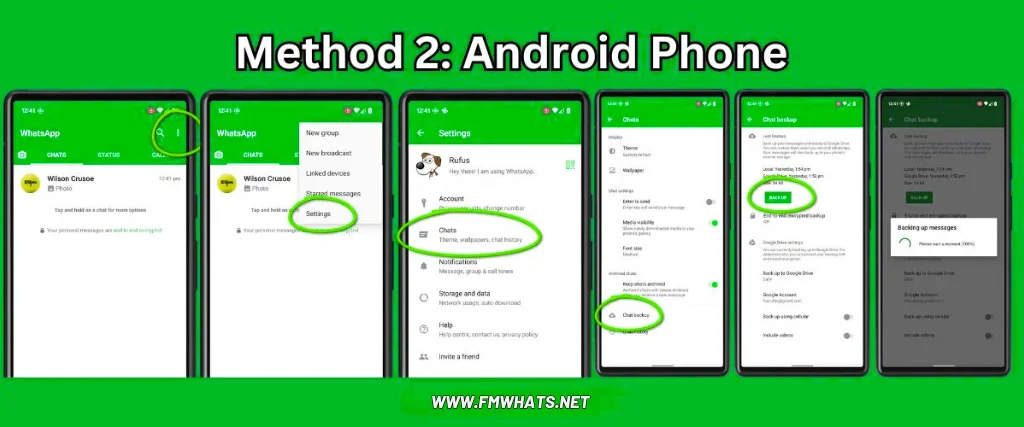
Or, Android users can get back messages from a WhatsApp backup:
- Open Settings: Go to WhatsApp settings.
- Chat Backups: Tap on ‘Chats’ then ‘Chat Backup.’
- Backup Now: Make sure your WhatsApp account is linked to Google and make a backup or turn on auto backups.
If messages are deleted:
- Delete WhatsApp: Uninstall WhatsApp from your phone.
- Reinstall WhatsApp: Get WhatsApp from the Google Play Store and follow the setup steps.
- Restore Backup: Restore the latest backup during the setup process.
Note: When using an iPhone, keep in mind that you can only restore the latest backup. If your device has made an auto-backup after the deletion of the data you want to fix, this way will not work.
Method 3: Using Third-Party Apps
When it comes to getting back deleted messages, many people try third-party apps like Tenorshare’s UltData and iMyFone’s ChatsBack. While these apps seem like fixes, they often do not give the results you hope for because of some limits.
- Install Applications: Download and install the apps on your computer and connect your phone.
- Analyze Data: Let the apps check your phone data.
Sadly, in tests, neither UltData nor ChatsBack got back any deleted WhatsApp messages. UltData only found profile images, and ChatsBack just saw chat sessions without messages.
Caution: These apps may take a long time to check your phone and could be harmful software. It is best to skip them and not pay for such services.
Method 4: Using FM WhatsApp by FMWhats.net
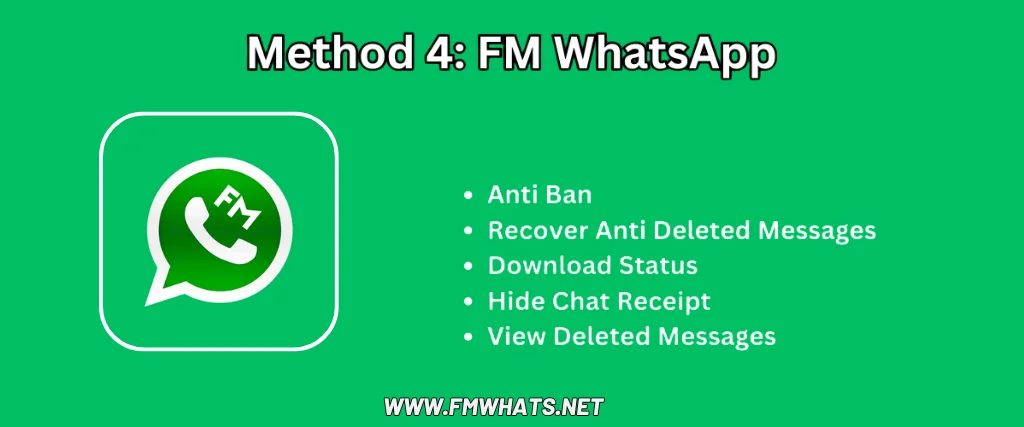
It is the best way for me to tell you. By using the FM WhatsApp APK, you can easily stop anyone from deleting a message. The message revoke feature in FM WhatsApp helps you keep a copy of the message on your device. You can also see the message even if the sender deleted it from their device. It is a great way to keep your privacy safe. Start using FM WhatsApp to fix many of your daily issues.
How to Retrieve Deleted WhatsApp Messages
A few weeks ago, WhatsApp added one of its most wanted features, message recall, also called the “delete for everyone” option. This feature lets you recall a message that you sent by mistake to someone. While this is a nice feature, it often makes receivers wonder what was really sent. If you are like me and want to know what was deleted, there is a way to find out. In this article, we will look at how you can see deleted WhatsApp messages.
Understanding deleted messages
When someone sends you a message on WhatsApp, it shows in the notification preview. And if they choose to delete the message, the notification preview goes away. But here is a useful tip. You can use an app called “Notification History,” which is on the Play Store, to save all your notifications and see deleted messages. It can be very helpful if you ever need to get a message that was deleted before you could read it.
Complete Guide to Viewing Deleted Messages
- Download Notification History: Go to the Play Store and get the “Notification History” app. Make sure you pick the right app, as there are a few with similar names.
- Grant Necessary Permissions: Open the app and allow it to access your notifications.
- Access Deleted Messages: Once the app is ready, it will save all your notifications. If someone deletes a message they sent you, you can open the Notification History app to see the deleted message.
Conclusion
Getting back deleted WhatsApp messages can be hard and often not reliable. Restoring from backups only works in certain cases, and the notification history on Android gives a partial fix. But third-party apps usually do not work and can bring security risks. If you want to fully stop deleted messages, Download FM WhatsApp APK now.